
How do I give feedback with annotations?
Who is this for: teachers
Simulise offers several ways to give feedback. When a student submits a blog or a document (for example a Word, Excel or PowerPoint file, or a PDF), you can also give feedback by adding comments and highlights to the document itself. In Simulise we call these annotations. Follow the steps below to see how it works.
How do you give feedback with annotations?
- Open a student's assignment.
- Click the submission (blog or document). The submission opens in a side panel.
-
For submissions that can be annotated, the annotation toolbar appears automatically:
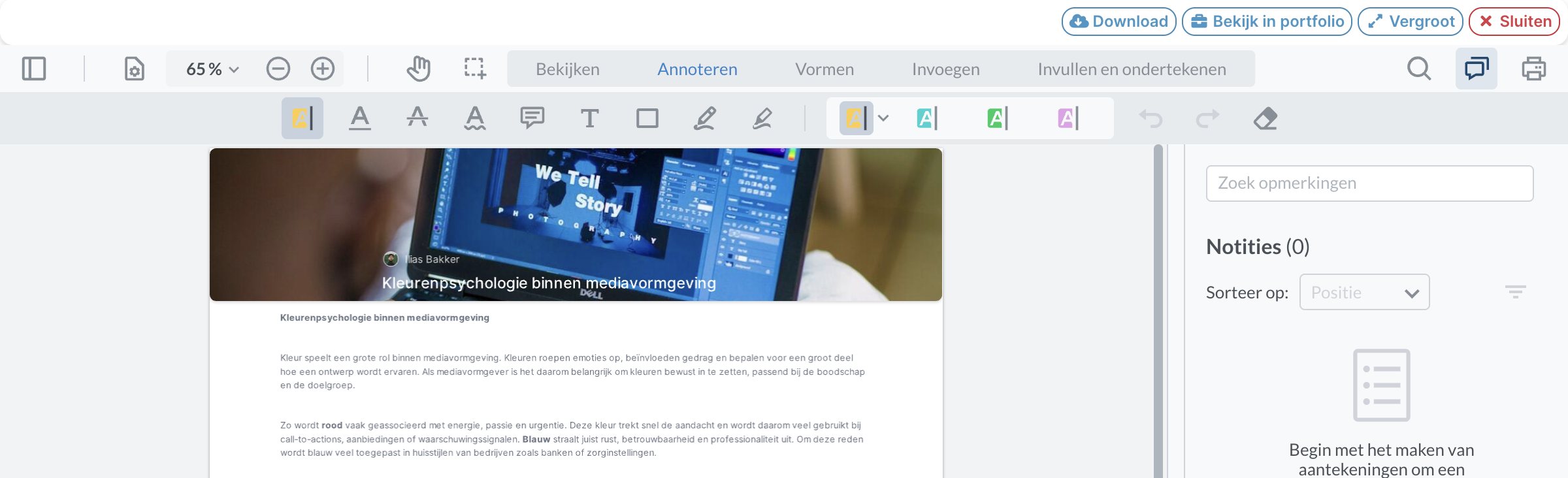
- You can now add comments and highlights to the document. These are the options from left to right:
- Highlight text
- Underline text
- Strike through text
- Underline text with a wavy line
- Add a comment
- Add text
- Add a box
- Freehand drawing
- Freehand highlighting
- Besides annotating, you also have these options:
- Shapes: add shapes and lines to the document
- Insert: add images or files to the document
