
How do I view assignments per student?
Who is this for: teachers
Go to the Analytics module and select Assignments per Student. From this report, you can generate an overview of all assignments that this student has received, including insight into their status and achieved scores.
Create new assignments by student report
To create a report, click New Report. You will now need to enter a number of parameters to generate the desired overview:
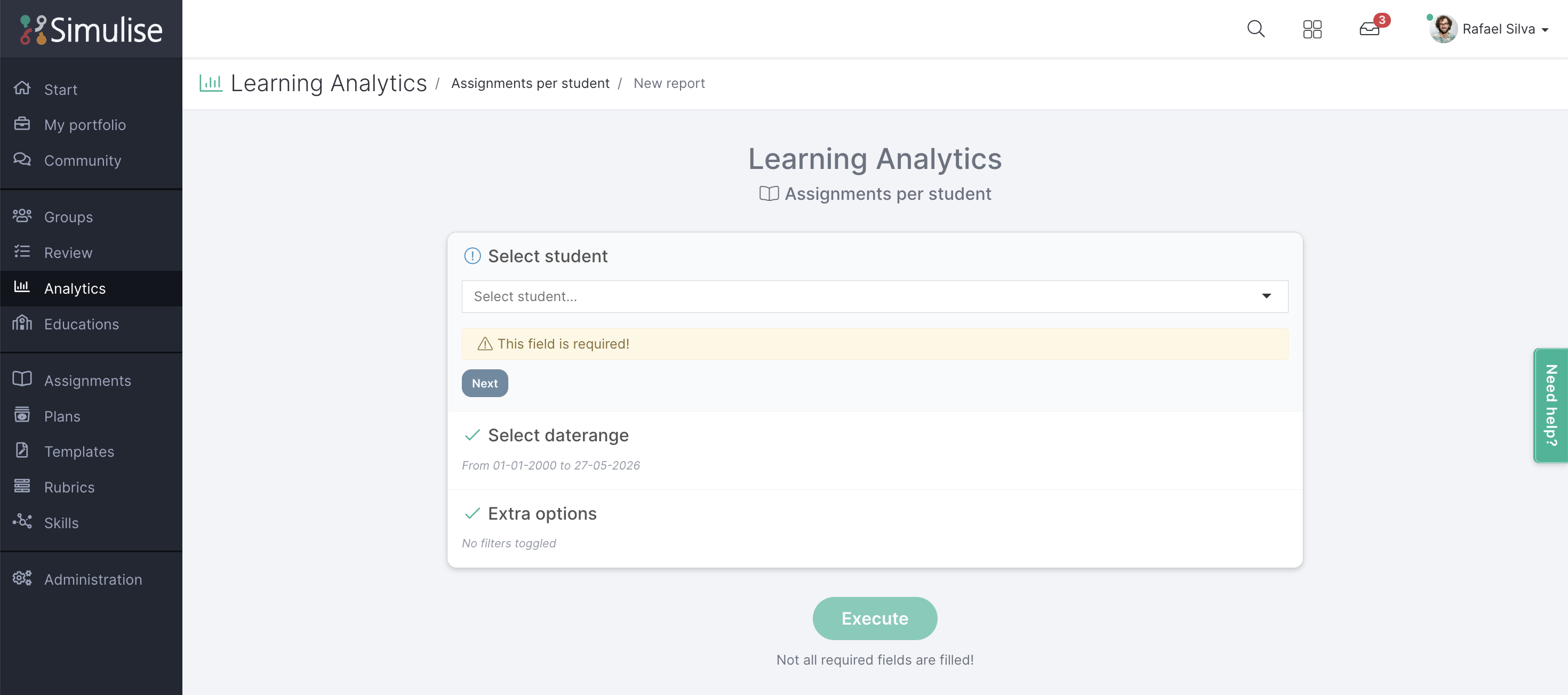
- Select Student: Choose one student for whom you want to generate this report.
- Select Time Range: Specify the period for which the report should be generated.
- Additional Options: Apply filtering. You can choose from the following options:
- Status: Select which statuses should be visible in the report. If nothing is selected, all statuses will be included.
- Labels: All categories and labels active in the assignments module. If a label is selected, all assignments linked to that label will be displayed.
- Competencies: Only show assignments that are linked to a rubric containing this competency.
- Assignments: Only show these specific assignment(s).
- Lesson Plans: Only show assignments that are part of this lesson plan.
- Templates: Only show assignments where this template is attached as a submission type.
- Reviewers: Only show assignments where this user is assigned as an assessor.
Report assignments by student
The report provides various insights regarding a specific student and all assignments the student has received, displayed in table form.
Good to know
Not all columns are shown by default. You can freely configure which columns are visible using the settings (gear icon) in the table.
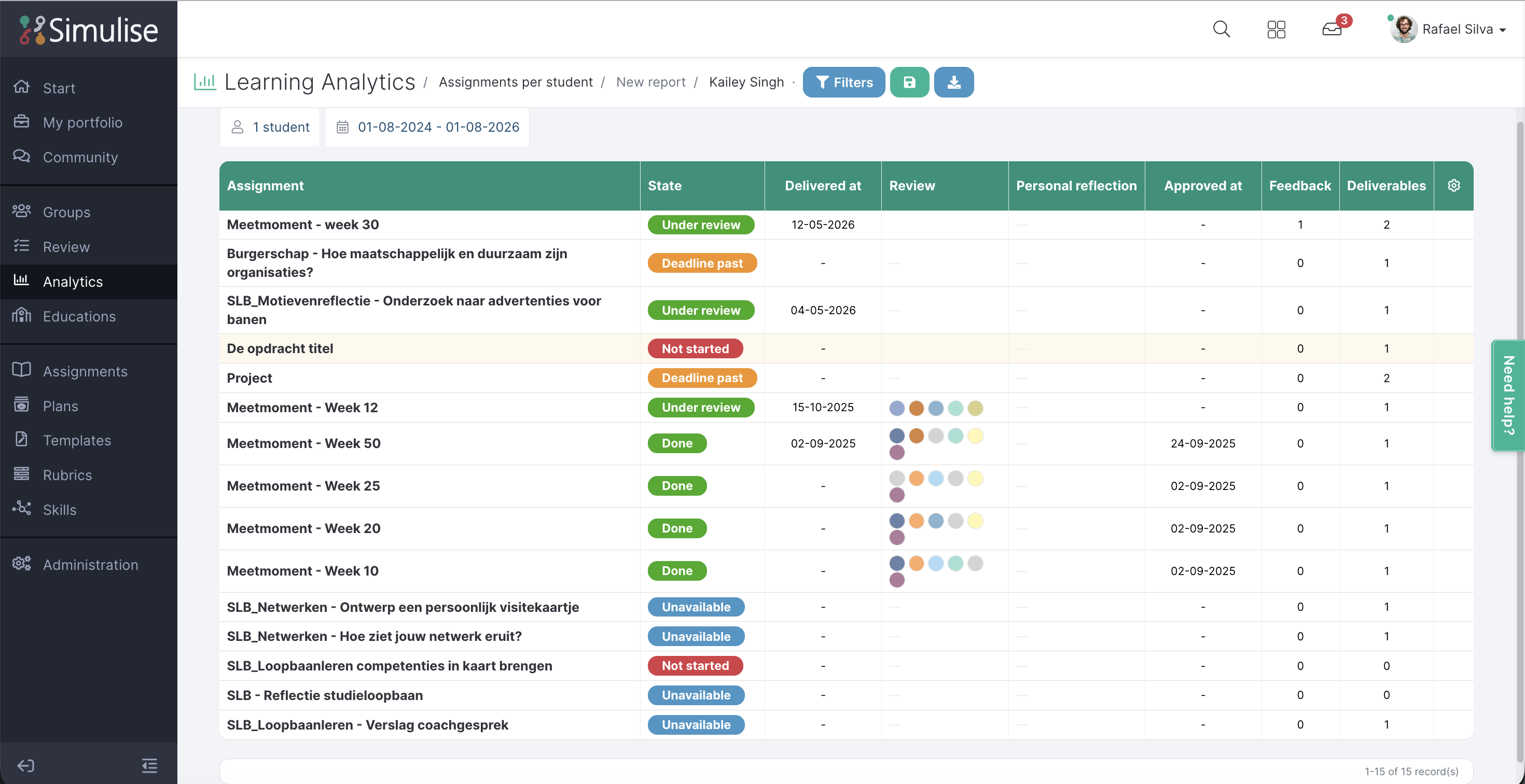
The table consists of the following columns:
- Assignment: The assignment received by the student.
- Status: The current status of the assignment for this student.
- Received at: The date the assignment was received by the student.
- Delivered at: The date the assignment was submitted by the student.
- Review: The evaluation given by the linked assessor(s).
- Personal reflection: The reflection completed by the student based on rubrics.
- Peer/third-party assessment: The evaluation provided by individuals invited through a reflection invitation.
- Assessment date: The date of the most recent assessment.
- Feedback: The number of feedback comments provided within the assignment.
- Deliverables: The number of submission items linked to this assignment by the student.
- Reflection invitations: The number of reflection invitations sent by the student.
- Reviewers: The number of assessors linked to the assignment and how many have already completed their assessment.
- Group: The group through which the assignment was assigned to the student.
- Lesson plan: The lesson plan through which this assignment was assigned to the student.
Save or download the report
The report can be saved for later use. This can be done with the green Save button. The saved reports can be found under the Competencies tile.
The report can also be downloaded with the Download button. Chose for the blue button. The download will be made into a Excel file.