
How do I view templates per group?
Who is this for: teachers
Go to the Analytics module and select Template Status for Groups. From this report, you can generate an overview similar to the Template Overview, but for multiple groups at once. In addition, you can view how the template has been completed within a specific assignment.
Create new Template for groups report
To create a report, click New Report. You will now need to enter a number of parameters to generate the desired overview:
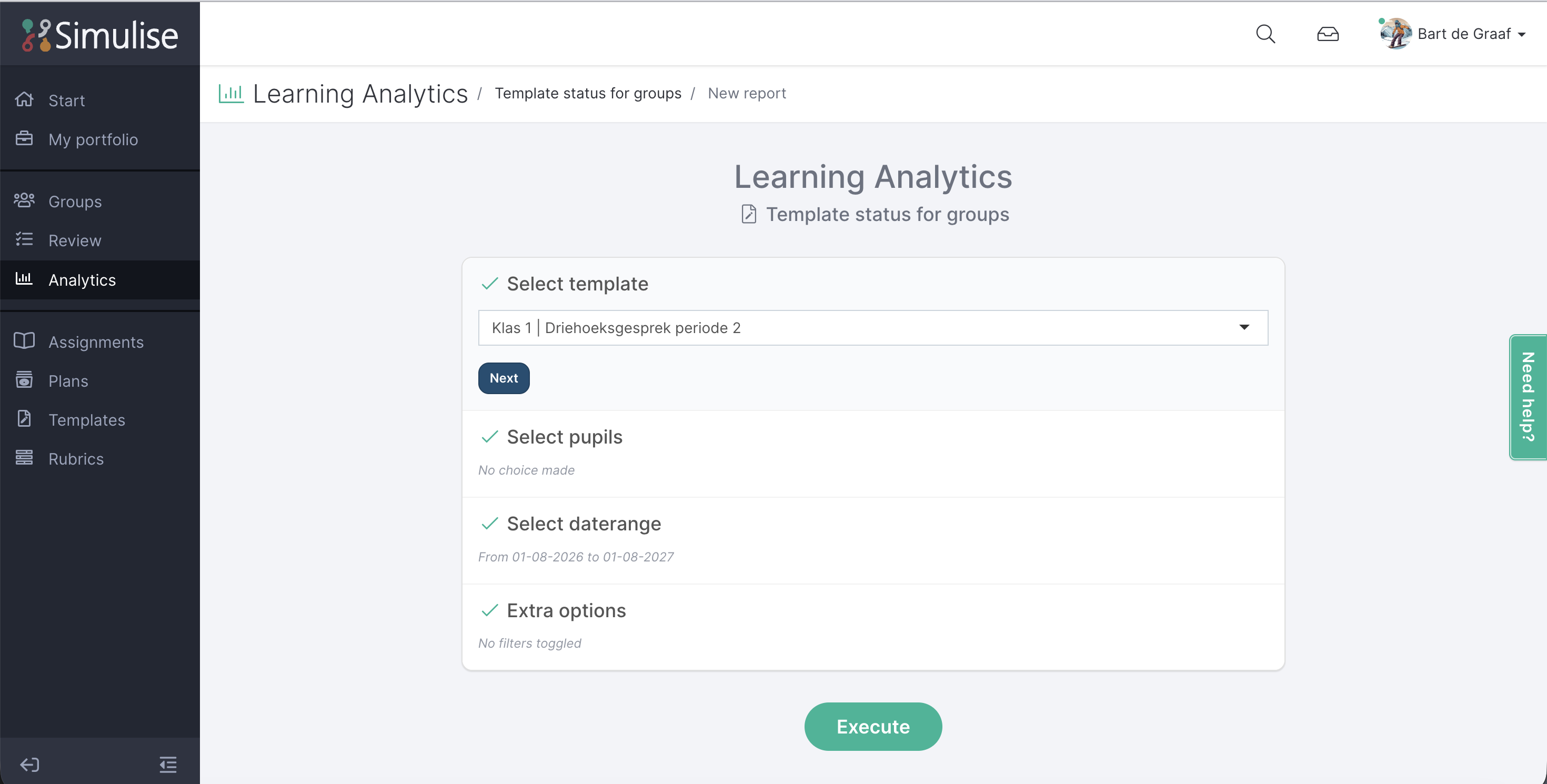
- Select template: Select the template you want to generate the report for.
- Select students: Select the students or groups you want to include in the report.
- Select date range: Specify the period for which the report should be generated.
- Extra options: Apply filters to refine the results. You can choose from the following options:
- Started: Only show students who have started working on the template. A template is considered started when at least one element has been completed.
- Finished: Only show students who have completed the template. A template is considered completed when all elements have been completed.
- Not yet started: Only show students who have not yet started working on the template.
- Assignments: Select an assignment in which the template is used. This will display the results for this template within the selected assignment.
Template Report Across Groups
The report provides insight into the progress of a specific template. You can view the progress across multiple groups at once. You can also see how a template has been completed within a specific assignment.
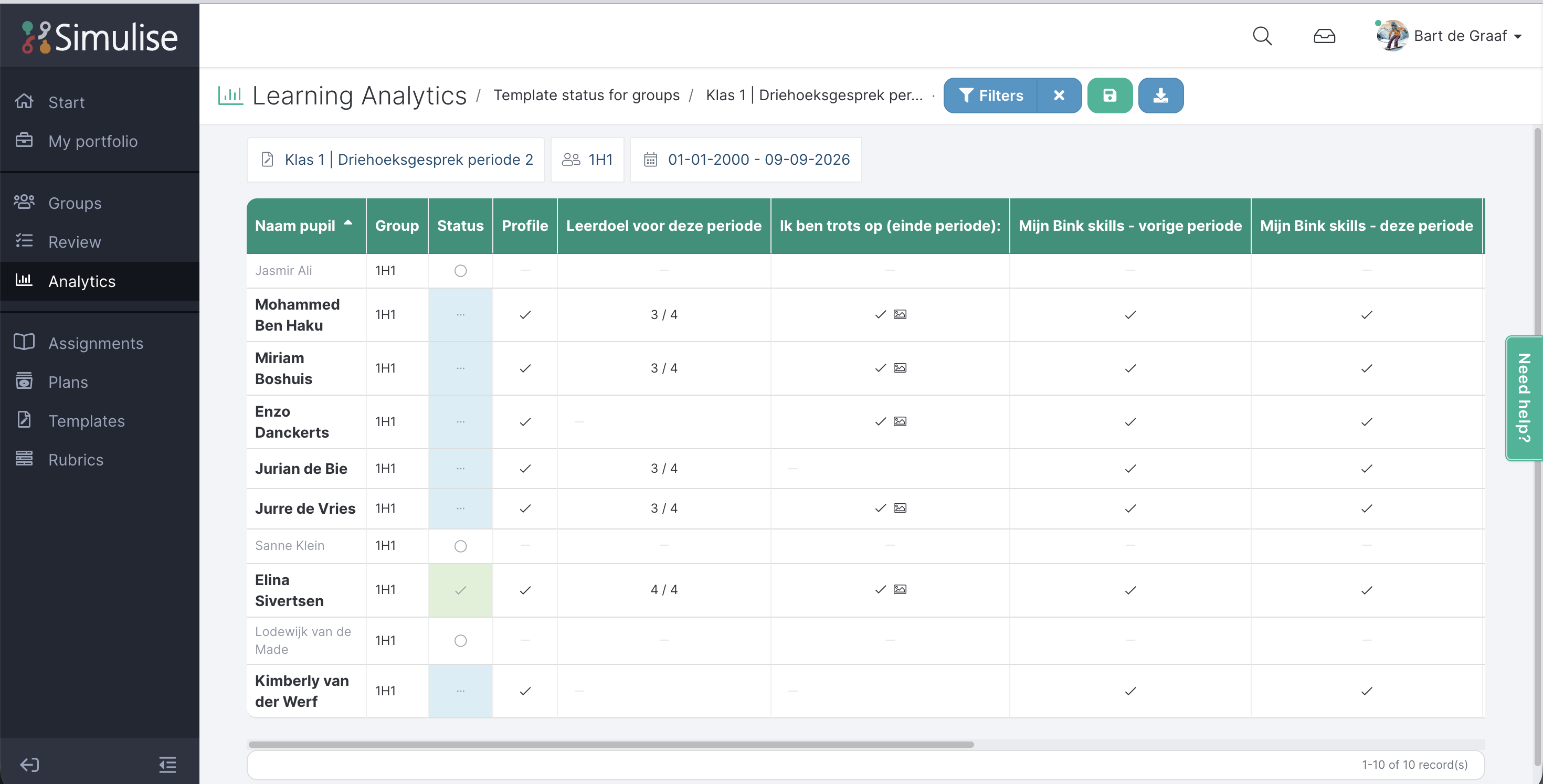
The table displays all elements that are present on the page.
- Status: Not started = white, Started = blue, Completed = green.
- Additional element: If the option “Students can add additional elements to the page” is enabled, this column may also contain information.
Good to know
Would you like to display only specific columns within the template? Click the gear icon on the far right to hide or show columns.
Save or download the report
The report can be saved for later use. This can be done with the green Save button. The saved reports can be found under the Competencies tile.
The report can also be downloaded with the Download button. Chose for the blue button. The download will be made into a Excel file.